IP Leak Prevention: Detect and Stop IP Leaks
A practical, step-by-step guide to detect, test, and prevent ip leak exposure across home networks and devices. Learn how to test exposure, configure VPNs, tweak browser settings, and harden your router in 2026.


By the end of this guide you will detect and reduce IP leaks in your home network. You’ll learn practical checks, how to test exposure, and how to configure devices for privacy. Start with a quick IP leak test, enable a VPN with leak protection, and tighten browser and app permissions. Then follow the step-by-step actions to close exposed gaps.
What is ip leak and why privacy matters
An ip leak occurs when your true IP address is exposed by websites, apps, or network configurations. When your IP address is visible, your location and identity can be tracked, and your browsing habits may be exploited. For homeowners and DIY enthusiasts concerned about privacy, understanding ip leak is the first step toward protective action. IP leaks can happen through WebRTC in browsers, misconfigured VPNs, or insecure DNS requests. This guide uses practical, tested methods to identify and mitigate leaks in a typical home setup. According to Leak Diagnosis, the most common leak sources are browser features, DNS leakage, and IPv6 exposure in poorly configured networks. By treating leak exposure as a multi-layer problem, you can secure your devices without sacrificing performance. The goal is to keep your online activities private from external observers like advertisers, your ISP, or potential attackers. With a clear plan, you can verify privacy improvements using real-world checks and regular maintenance. Privacy hygiene is not a one-time fix; it requires routine checks and timely updates to stay ahead of evolving threats.
Tools & Materials
- VPN service with DNS leak protection and a kill switch(Choose a provider with built-in DNS leak protection and an active kill switch.)
- DoH/DoT-capable browser or OS setting(Enable DNS over HTTPS or secure DNS resolver.)
- Updated router firmware(Ensure latest security updates and change default admin password.)
- IP leak testing tool or website(Use at least two independent tests; e.g., ipleak.net, dnsleaktest.com.)
- Privacy-focused browser/settings(Disable WebRTC or configure to prevent IP leakage.)
- Firewall or network monitoring app(Optional for advanced monitoring.)
Steps
Estimated time: 60-90 minutes
- 1
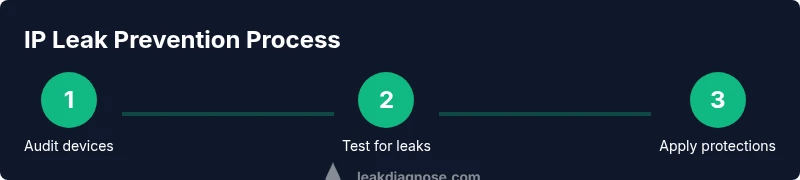
Audit devices for exposure
Inventory every internet-connected device in your home. Identify which devices run apps or services that could reveal your IP address, such as browsers with WebRTC, peer-to-peer apps, and smart TVs. Create a simple device list and note current privacy settings. This helps ensure you don’t miss a hidden exposure.
Tip: Document exposures so you can remediate them in one pass. - 2
Test for leaks using trusted tools
Run IP leak tests from multiple devices and networks, both with and without a VPN. Use reputable tests like ipleak.net and dnsleaktest.com to compare results across IPv4 and IPv6. Record discrepancies to guide remediation.
Tip: Test at different times to catch dynamic IP behavior. - 3
Enable VPN with DNS leak protection and kill switch
Activate a VPN that explicitly protects against DNS leaks and includes a kill switch. Confirm the VPN starts automatically on device boot and that all traffic routes through the VPN when it’s active.
Tip: Turn on auto-connect for immediate protection on startup. - 4
Configure DoH/DoT and secure DNS
Enable DNS over HTTPS or DNS over TLS with a privacy-focused resolver. Disable default ISP DNS when possible and ensure IPv6 requests also route through the secure resolver.
Tip: Choose a resolver that supports both IPv4 and IPv6 privacy. - 5
Harden browser and apps against leaks
Disable or restrict WebRTC in all browsers, review and disable unnecessary permissions, and disable features that bypass the VPN. Regularly audit installed extensions for privacy risk.
Tip: Block WebRTC in your browser settings or with trusted extensions. - 6
Secure your router and network devices
Update router firmware, change default admin credentials, enable a firewall, and disable remote management. Consider creating a separate guest network to isolate IoT devices.
Tip: Regularly check for firmware updates and apply them promptly.
Questions & Answers
What exactly is an ip leak?
An ip leak is when your real IP address is exposed to websites or apps, potentially revealing your location and identity. It can occur despite privacy tools if configurations bypass protections. Understanding ip leak helps you implement layered defenses.
An ip leak is when your real IP address leaks to websites. It can happen even with privacy tools if settings bypass protections.
How do I test for an ip leak effectively?
Use multiple tests from reputable sites, compare results with and without a VPN, and check both IPv4 and IPv6. Include browser-based tests to identify WebRTC leaks.
Test for ip leak with several sites, compare VPN on/off results, and check both IPv4 and IPv6.
Can a VPN completely prevent IP leaks?
A VPN with DNS leak protection and a kill switch minimizes leaks but is not a guarantee. Ongoing privacy hygiene and correct configurations are essential.
A VPN greatly reduces IP leaks but isn’t a guaranteed shield—you should maintain proper settings.
What should I do if I still see leaks after following steps?
Double-check WebRTC settings, DNS resolver configuration, and router security. Re-test after each change, and consider adding a firewall or privacy-focused DNS provider.
If leaks persist, re-check WebRTC and DNS, then re-test after changes.
Are there privacy risks with IPv6 leaking, and how can I mitigate them?
IPv6 can reveal addresses if not properly routed through your VPN or firewall. Ensure IPv6 traffic is tunneled or disabled where appropriate and monitor network settings.
IPv6 can leak if not handled; route it through the VPN or secure DNS, or control it via firewall settings.
Watch Video
Main Points
- Test IP exposure across devices and networks
- Use VPNs with DNS leak protection and a kill switch
- Enable DoH/secure DNS and harden router settings
- Regularly re-test and update privacy configurations