How to test for dns leak: A practical guide for 2026
Learn how to test for DNS leak, interpret results, and apply secure fixes. This step-by-step guide covers tools, methods, and best practices to protect DNS privacy across devices in 2026.


To test for dns leak, use a trusted DNS leak test while your VPN or private network is active. Inspect both IPv4 and IPv6 requests and compare the results with your expected DNS providers. If the test shows third-party servers, proceed with the recommended fixes and best practices outlined below to ensure your DNS traffic remains private and properly routed.
What is a DNS leak and why it matters
A DNS leak happens when your device reveals the DNS servers it uses, even when you think your traffic is protected by a VPN or private network. For homeowners and DIY enthusiasts, understanding test for dns leak is an essential step toward preserving online privacy. According to Leak Diagnosis, DNS leaks can expose which websites you visit and where you access them from, potentially revealing sensitive patterns about your online behavior. The ability to detect a dns leak early helps you take targeted action, rather than guessing which configuration is at fault. In this guide, we explore how to test for dns leak, interpret results, and apply practical fixes that keep your DNS queries aligned with your intended provider network. This is foundational to maintaining a privacy-first online setup, especially when you use shared networks or mobile connections.
How DNS leaks happen on different networks
DNS leaks occur for a variety of reasons: misconfigured VPN DNS servers, WebRTC leaks in browsers, IPv6 traffic bypassing VPN tunnels, or router DNS settings that override device defaults. On a home Wi‑Fi network, a DNS leak might reveal your real ISP’s DNS server if the VPN disconnects or fails to route DNS queries. On mobile networks, switching between cellular and Wi‑Fi can trigger leaks if the VPN client doesn’t enforce DNS routing consistently. Understanding these pathways helps you design a more resilient setup and makes the test for dns leak more meaningful. Leak Diagnosis emphasizes that the risk isn’t uniform across devices; you should test across devices to capture a complete privacy picture.
Choosing reliable DNS leak test tools
Not all DNS leak tests are created equal. For a robust assessment, use at least two independent tools that report both IPv4 and IPv6 DNS queries. Trusted options include dnsleaktest.com and ipleak.net, which provide quick snapshots of DNS resolver information. When selecting tools, prioritize those that show the exact DNS servers your client resolves to, timestamps, and IP version support. Note that some tests focus only on IPv4; ensure you also verify IPv6 pathways if you routinely enable IPv6 on your network. As you gather data, compare results against your VPN’s advertised DNS servers to identify any discrepancies.
Step-by-step: perform a test for dns leak (narrative guide)
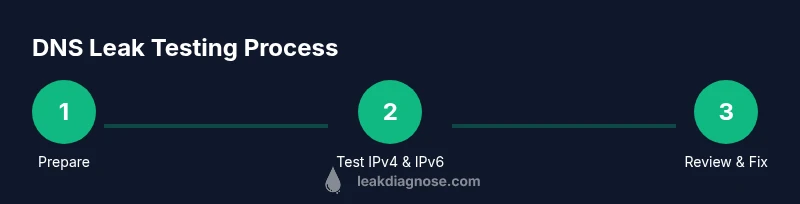
To perform a test for dns leak effectively, start by ensuring your privacy tools are active. Then, visit a trusted test site and initiate a DNS check for both IPv4 and IPv6, recording the servers shown. Repeat on a different device to confirm consistency, and test under different network conditions (VPN on vs. VPN off) to observe any changes in DNS resolution. Finally, review the results side-by-side with your expected DNS providers and document any deviations. This approach helps you pinpoint whether leaks occur and where they originate within your setup.
Interpreting test results
Interpreting results requires clarity: if the DNS servers listed match your VPN provider or your chosen private DNS, you are likely not leaking DNS requests. If you see your ISP’s DNS, or a public DNS that isn’t part of your configured privacy tools, you likely have a dns leak. Some tests show both the DNS resolver IP and the domain name; use that information to map which part of your system is leaking. When results indicate a leak, prioritize fixes that re-route DNS through your VPN or privacy DNS, and disable any feature that may bypass the tunnel, such as WebRTC in browsers or IPv6 leakage.
How to fix DNS leaks: practical methods
Fixing a dns leak usually involves a combination of client and router-side actions. Start by enabling DNS leak protection and a kill switch in your VPN app to ensure DNS requests never bypass the tunnel. If your VPN supports DNS over TLS (DoT) or DNS over HTTPS (DoH), enable these options for encrypted queries. Disable WebRTC in all web browsers to prevent IP exposure, and ensure IPv6 traffic is either properly tunneled through the VPN or explicitly disabled if not supported. For routers, set the DNS server to a trusted provider and disable DHCP/DNS settings that could route requests to default ISP servers. Regularly test after applying changes to confirm the leak is resolved.
Best practices to minimize DNS leaks
Establish a routine to test for dns leak at least once a month, or whenever you switch networks or devices. Use a reputable VPN with strong DNS leak protection, and consider a DNS-over-TLS/HTTPS setup for additional privacy. Maintain updated browser configurations, especially around WebRTC, and confirm that your router and devices consistently use your privacy DNS instead of default ISP servers. Document your testing results so you can track improvements and quickly spot regressions after software updates.
Common pitfalls and safety notes
Be mindful that some DNS leak tests can vary in depth or accuracy. Always run tests from trusted sources and avoid disclosing sensitive network details to uncertain sites. If you rely on a corporate or school network, ensure you have permission to test DNS settings, as misconfigurations can impact connectivity. Do not disable essential security features or ignore firmware updates that improve DNS handling. The goal is to create a stable, privacy-preserving DNS flow that you can rely on across all devices.
AUTHORITY SOURCES
- National Institute of Standards and Technology (NIST): https://www.nist.gov
- Cybersecurity & Infrastructure Security Agency (CISA): https://www.cisa.gov
- Internet Society privacy and security guidelines: https://www.internetsociety.org
Tools & Materials
- Reliable VPN or private network(Ensure DNS leak protection and a functioning kill switch.)
- DNS leak test sites(Use at least two independent tests (e.g., dnsleaktest.com, ipleak.net).)
- Browser privacy controls(Disable WebRTC or use browser extension for privacy.)
- Second device for cross-device testing(Helpful to verify consistency across platforms.)
- Active IPv6 check(Test both IPv4 and IPv6 DNS results.)
Steps
Estimated time: 15-30 minutes
- 1
Prepare your testing environment
Connect to your VPN or private network and verify the VPN’s DNS leak protection is enabled. Ensure all privacy features are up to date and ready for testing.
Tip: Do a baseline test with the VPN off to understand your normal DNS exposure. - 2
Run an IPv4 DNS leak test
Open a trusted DNS leak test site and initiate the IPv4 DNS check. Record the DNS servers that appear and compare them with your VPN’s stated DNS servers.
Tip: Note the timestamp and browser you used for reproducibility. - 3
Run an IPv6 DNS leak test
If your network supports IPv6, perform a separate IPv6 check. Some leaks only appear on IPv6, so this step is crucial for accuracy.
Tip: If IPv6 leaks, consider disabling IPv6 in environments where VPN support is limited. - 4
Check for WebRTC leaks in browsers
Disable WebRTC through browser settings or extensions because WebRTC can reveal your real IP, potentially masking a DNS leak.
Tip: Reload pages after changing WebRTC settings to ensure changes take effect. - 5
Test across devices
Repeat tests on a second device (e.g., mobile) to confirm the results are consistent across platforms.
Tip: If a device consistently leaks, focus on its network settings or VPN client configuration. - 6
Compare results to expected DNS providers
Match the results against your VPN’s DNS servers or your chosen private DNS provider. Any mismatch signals a leak.
Tip: Document each test to build a trend over time. - 7
Apply fixes and re-test
Enable DoT/DoH if supported, adjust router DNS, and use a kill switch. Re-run the tests to verify leak resolution.
Tip: Change one variable at a time to identify which fix solves the issue. - 8
Maintain ongoing privacy hygiene
Schedule regular checks and update all security tools. Keep a log of changes and test results for accountability.
Tip: Consider adding a simple automation to remind you to test monthly.
Questions & Answers
What is a DNS leak and why should I care?
A DNS leak occurs when DNS queries reveal your real location or ISP despite privacy tools. It matters because it can expose browsing patterns. Testing for dns leak helps you verify your privacy controls are working.
A DNS leak is when your DNS requests reveal your location despite privacy tools. It matters because it can expose your browsing. Test to confirm your protections are active.
Do all VPNs protect against DNS leaks?
Not all VPNs automatically prevent DNS leaks. Look for features like DNS leak protection, a kill switch, and DoT/DoH support. Always verify with a test for dns leak after enabling protections.
Not every VPN blocks DNS leaks by default. Check for leak protection and run tests after enabling features to verify.
How often should I test for dns leak?
Test after any configuration change, VPN switch, or device update. Regular monthly checks are a good practice to catch new leaks early.
Test after changes or updates, and consider a monthly check as a routine privacy habit.
Can dns leaks happen on mobile data networks?
Yes, DNS leaks can occur on mobile networks if the DNS requests bypass the VPN. Always test on mobile devices and enforce DNS routing when possible.
Leaks can occur on mobile networks too. Test on mobile devices and ensure VPN DNS routing is active.
How do I fix a DNS leak?
Enable DNS leak protection, use DoT/DoH if available, disable WebRTC in browsers, and ensure the VPN kill switch is active. Re-test to confirm the leak is resolved.
Fix by enabling protections, using DoT/DoH, turning off WebRTC, and keeping the kill switch on; then re-test.
Watch Video
Main Points
- Test for dns leak across multiple devices to confirm privacy.
- Use at least two reliable DNS leak test tools for accuracy.
- Enable VPN DNS protection and privacy-enhancing DNS settings.
- Regularly re-test after changes or updates to maintain privacy.
- Document results to track privacy improvements over time.